
User Guide
Everything you need to know to use SmartSignReader effectively
Getting Started
Open the App
Navigate to the home page and click "Start Recognition"
Allow Camera
Grant camera permission when your browser prompts you
Start Signing
Make ASL hand signs and watch them get recognized!
How to Use
Detection Modes
🟢 Auto Mode (Default)
How it works: Hold your hand sign steady for 2 seconds, and the letter automatically adds to your word.
Best for: Normal word formation, continuous signing, learning ASL
⚡ Manual Mode
How it works: Make a sign, then press and hold SPACE for 1.2 seconds to add the letter.
Best for: Precise control, preventing accidental additions, practicing without building words
To switch modes: Click the "Auto" or "Manual" button in the word display panel
Controls & Shortcuts
Word Prediction
Smart Word Suggestions
How it works: After typing 2+ letters, the app automatically suggests common words that match your input.
Features:
- 800+ common conversation words (greetings, questions, actions)
- Shows up to 5 predictions on desktop, 3 on mobile
- Click any prediction chip to complete the word
- Use number keys 1-5 to quickly select predictions
- Predictions automatically update as you add letters
Tips for Best Detection

Good Lighting
Use bright, even lighting. Avoid backlighting (windows behind you) and shadows on your hand.

Hand Position
Keep your hand 1-2 feet from camera. Hand should fill 40-60% of the frame.

Plain Background
Use a solid, plain background. Avoid busy patterns or movement behind your hand.

Hold Steady
Keep your hand steady while the timer fills. Movement resets the timer.

Correct Angle
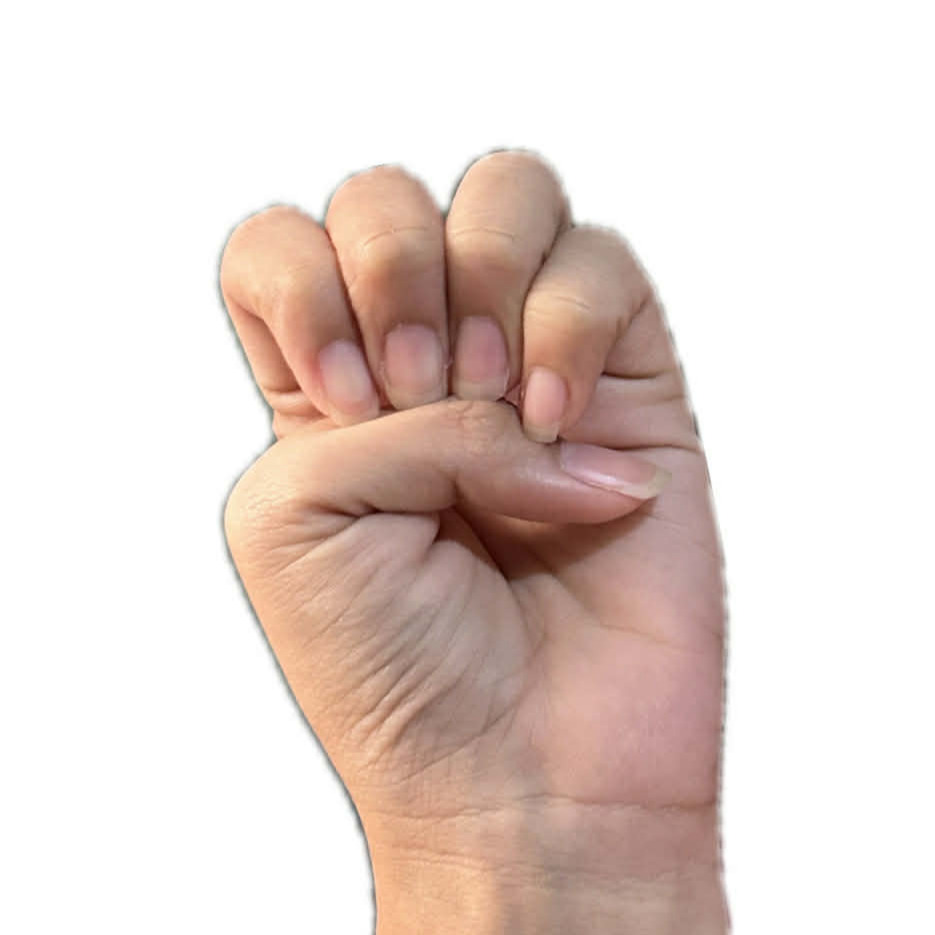
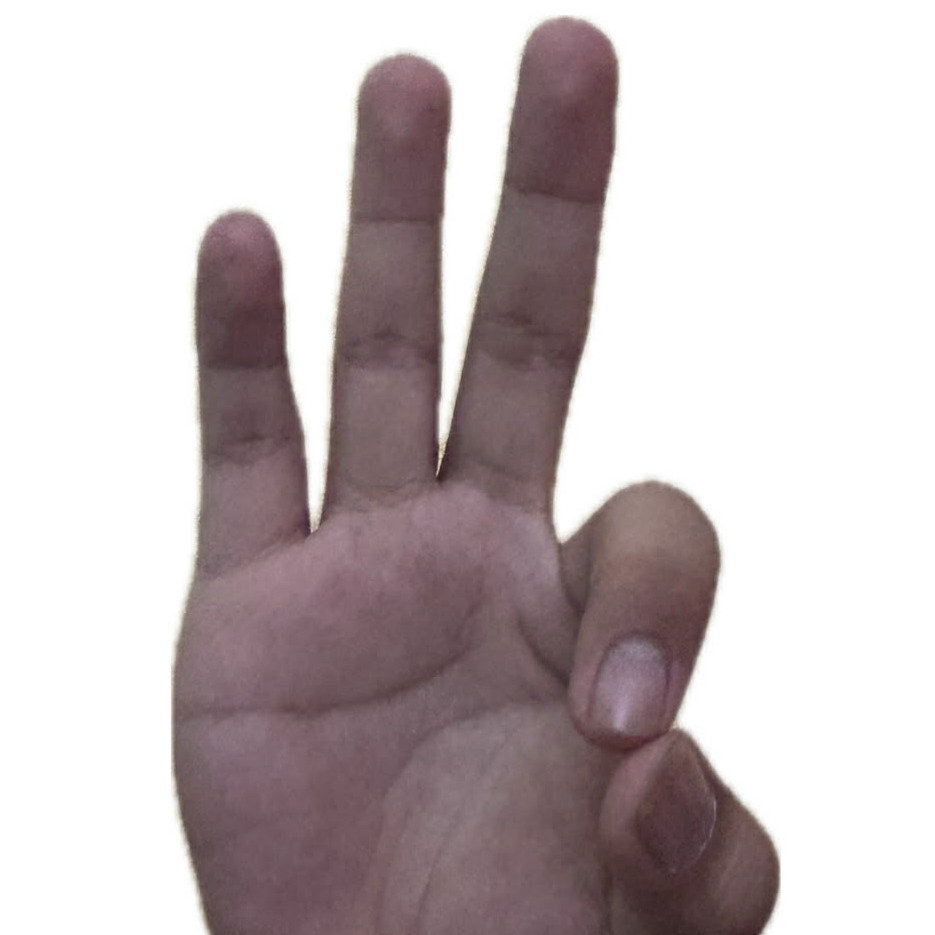
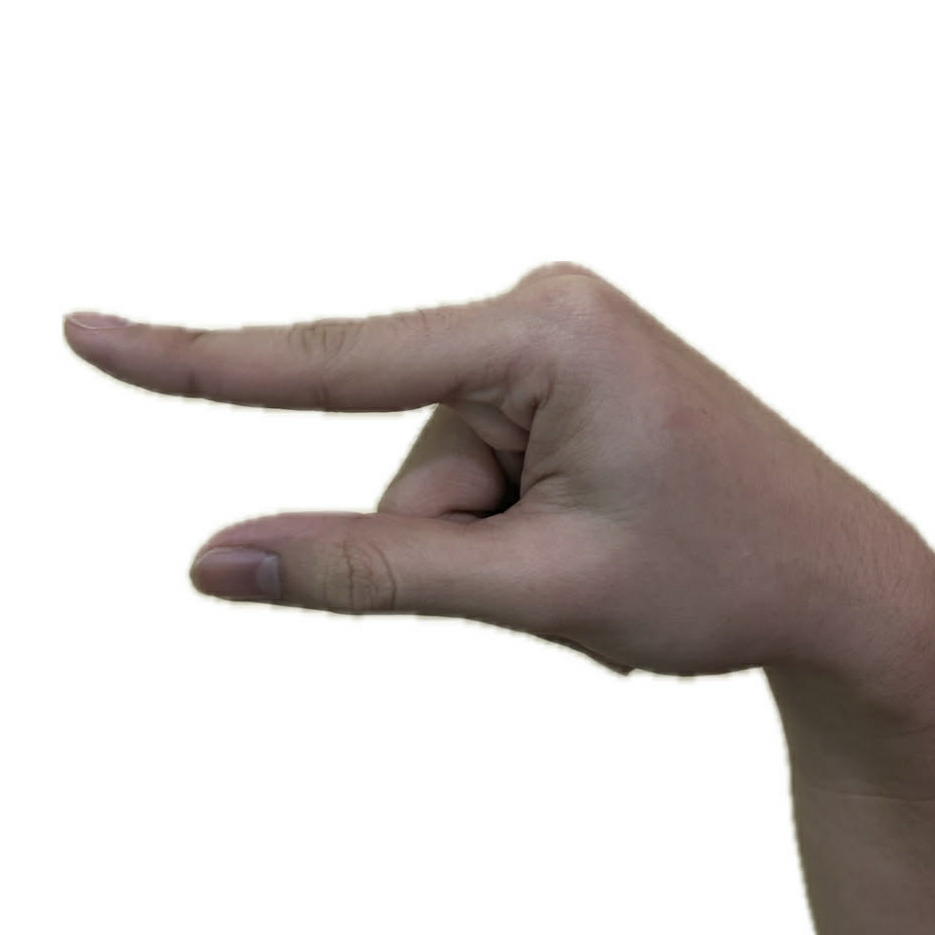
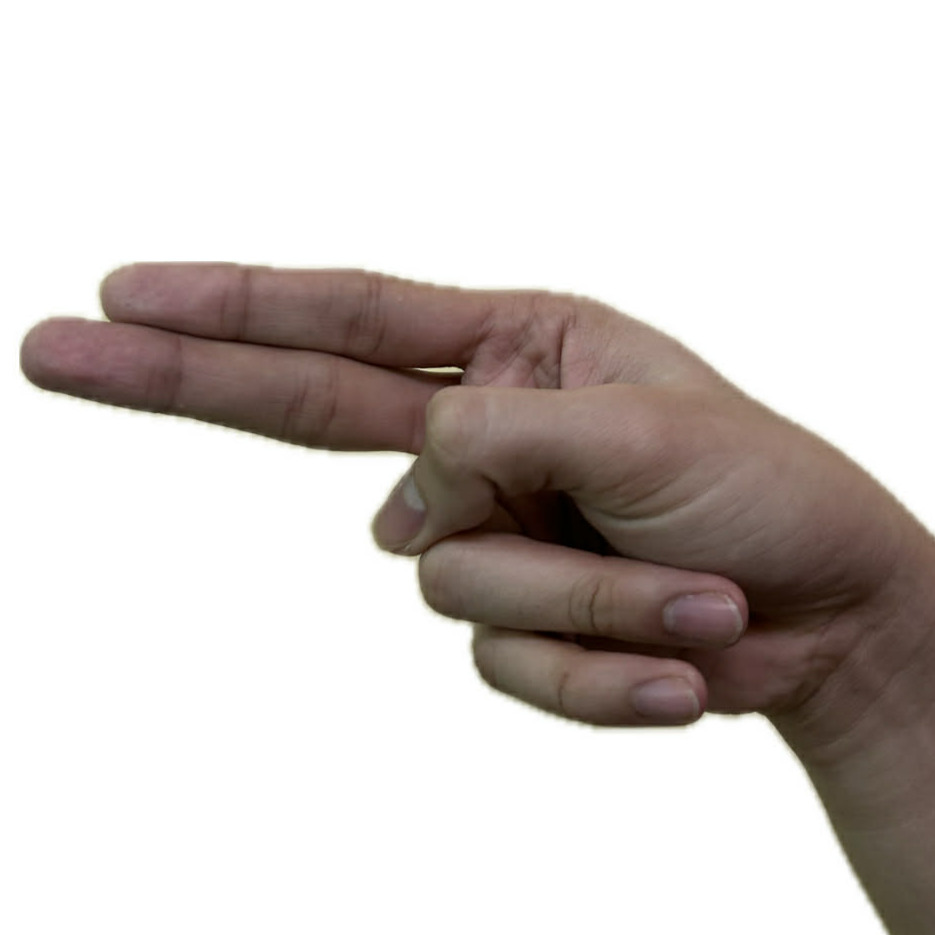
Face your palm toward the camera at the right angle for each letter (check the guide).

Check Confidence
Aim for 75%+ confidence. Low confidence? Adjust lighting or hand position.
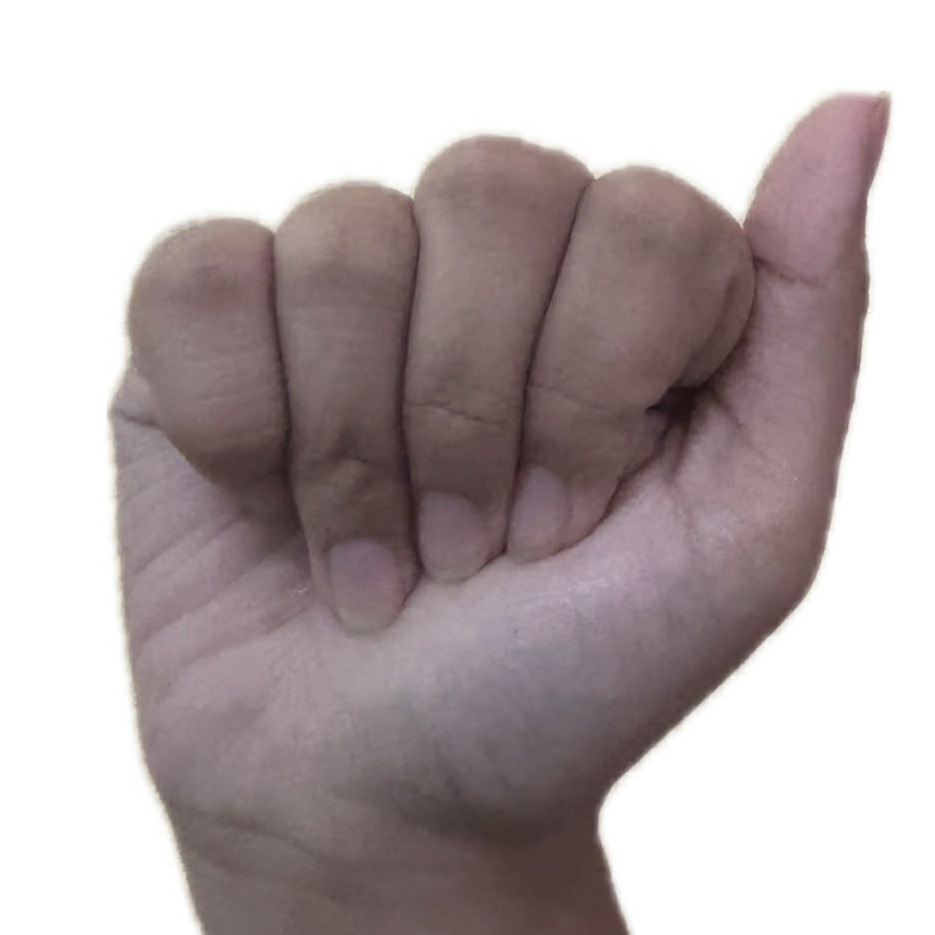
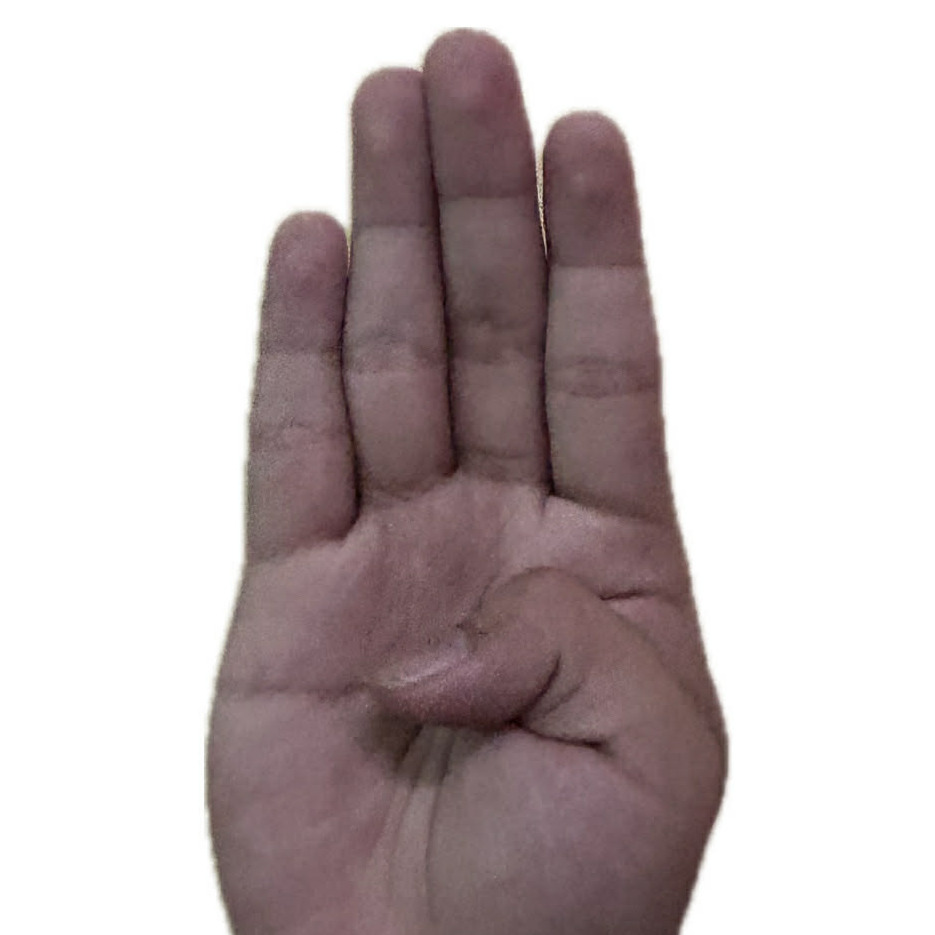
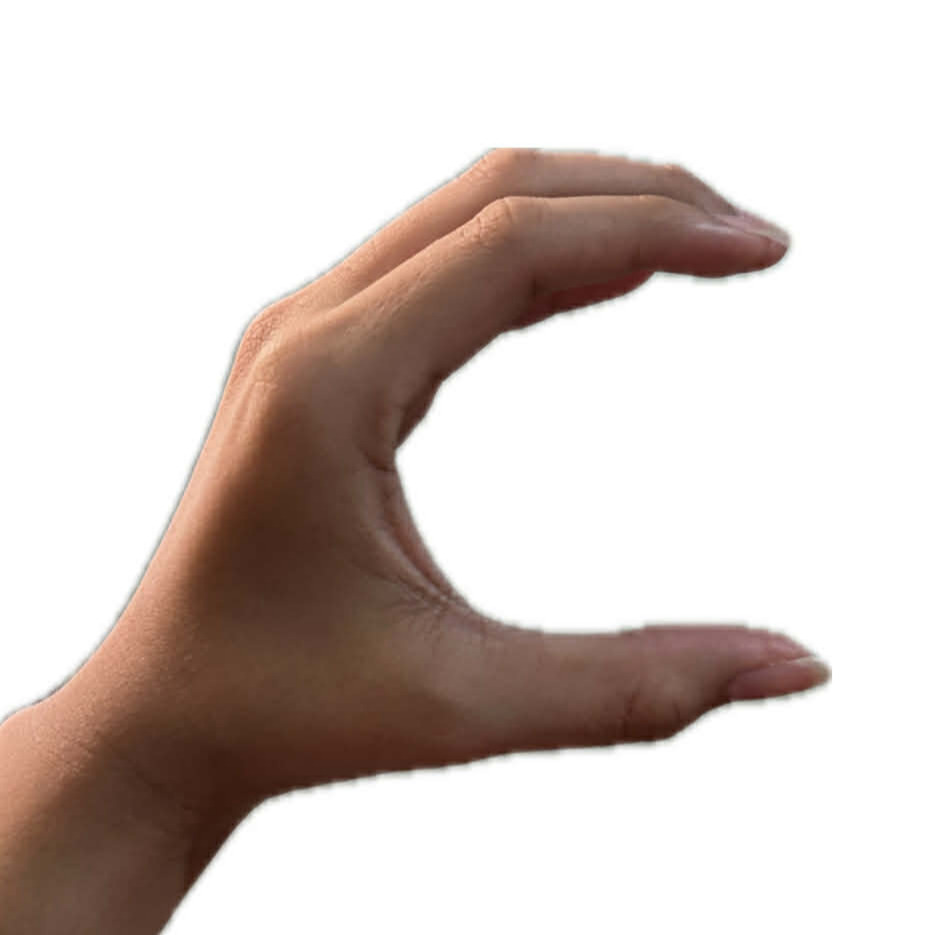
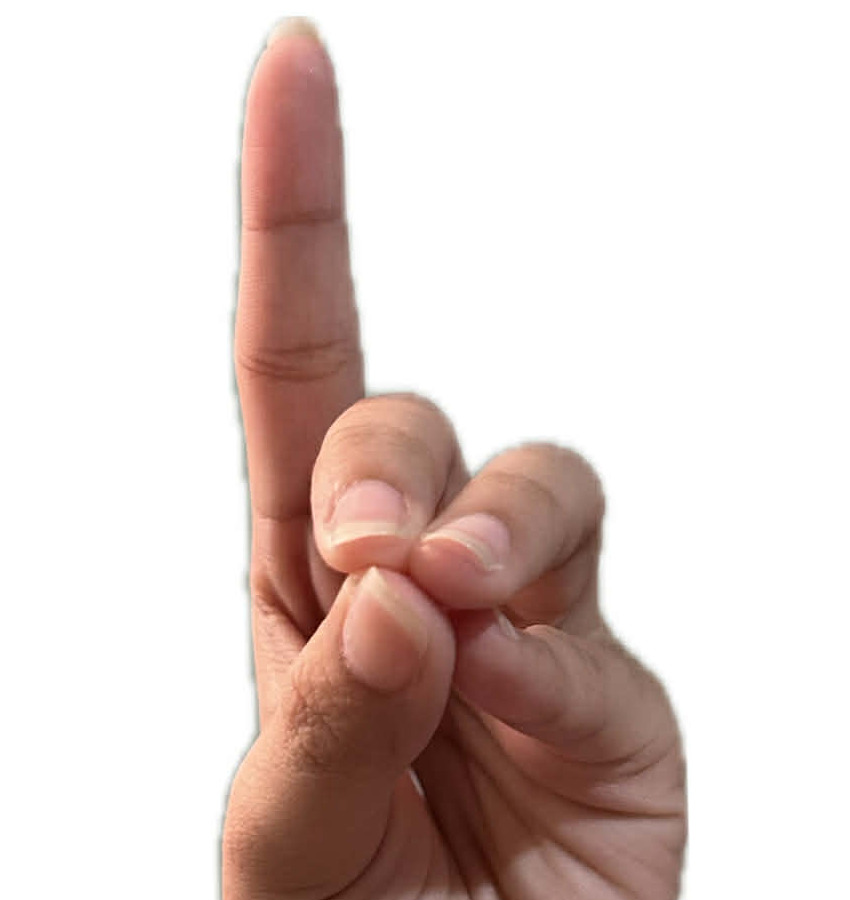
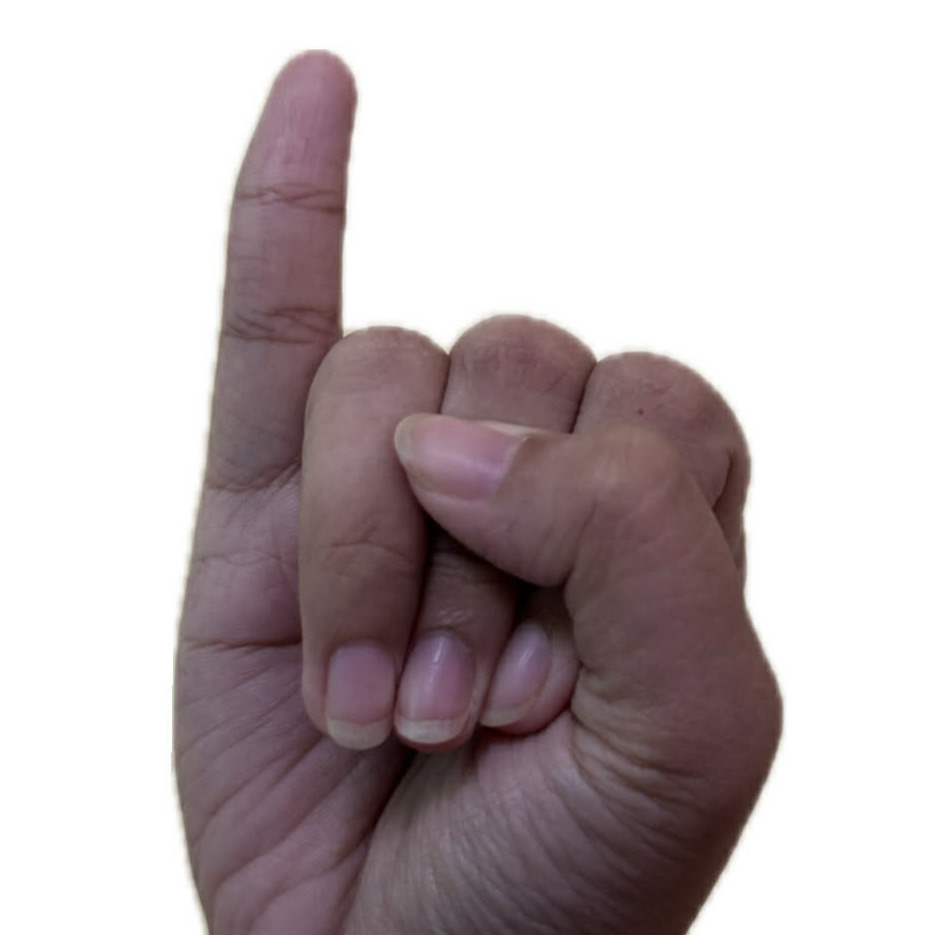
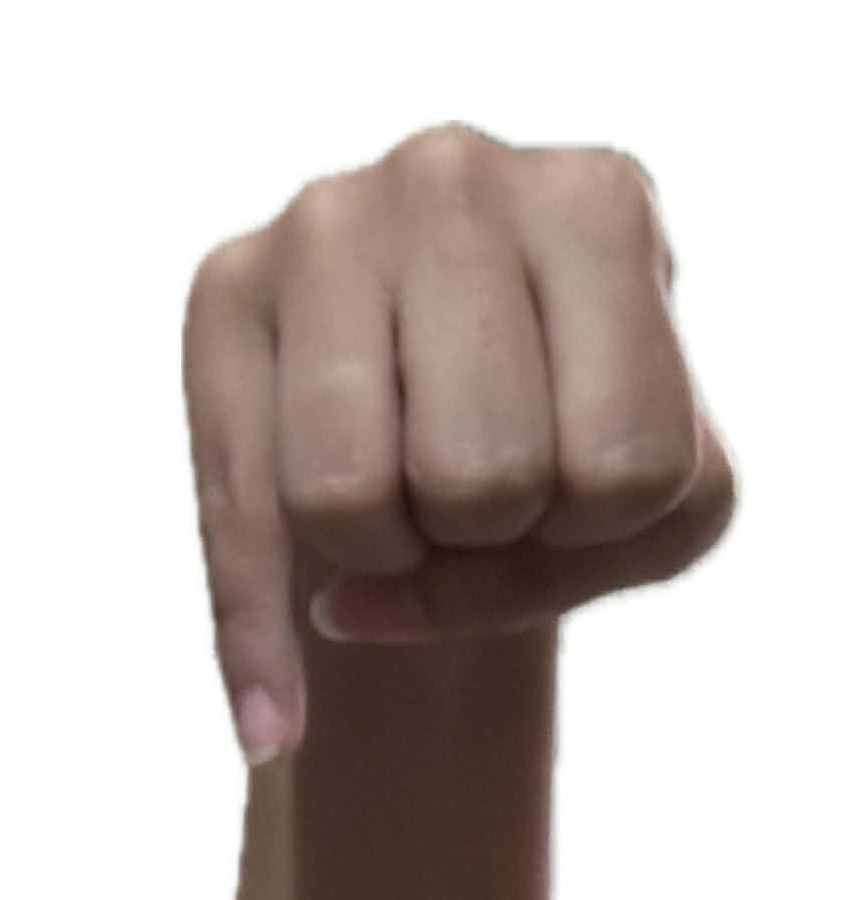
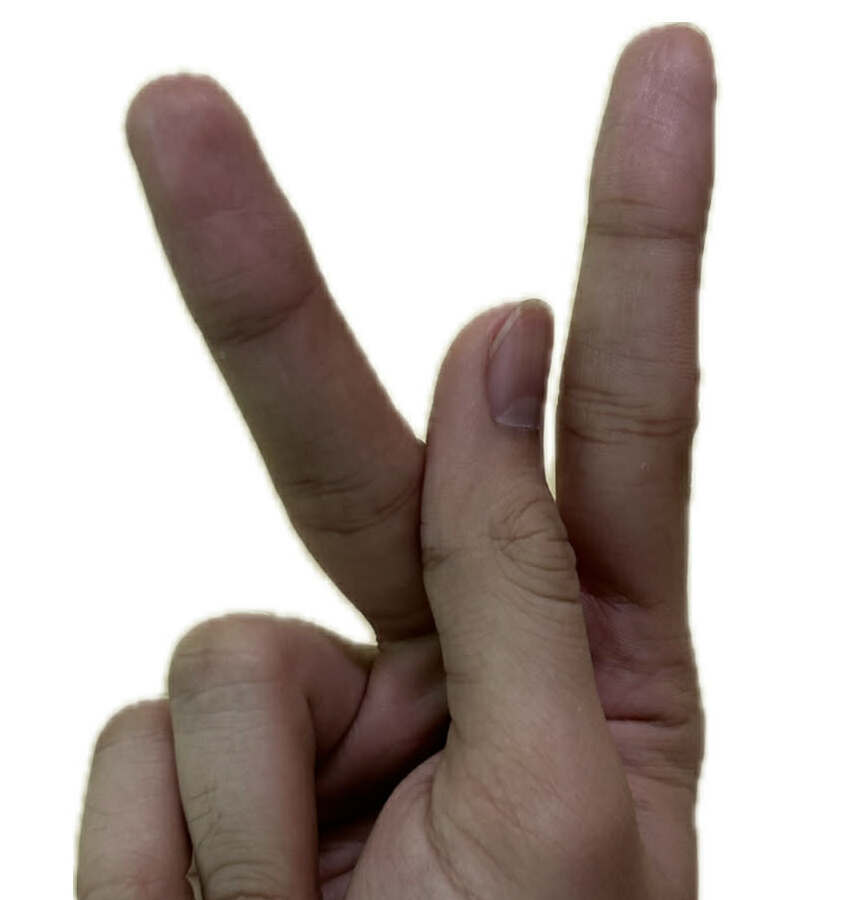
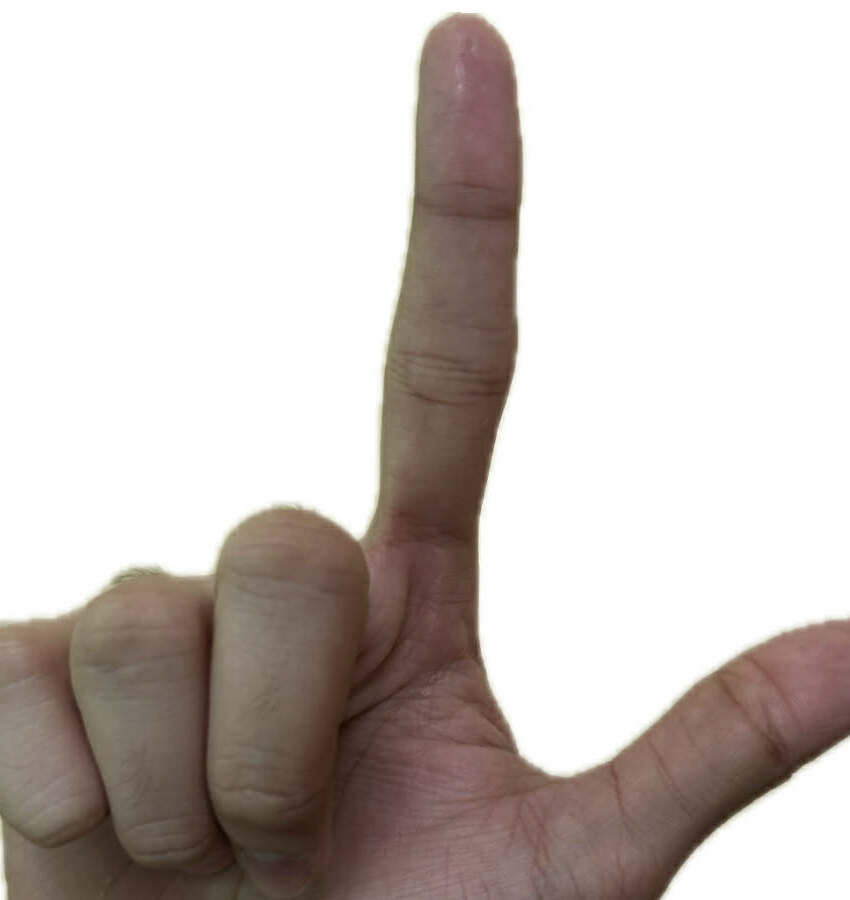
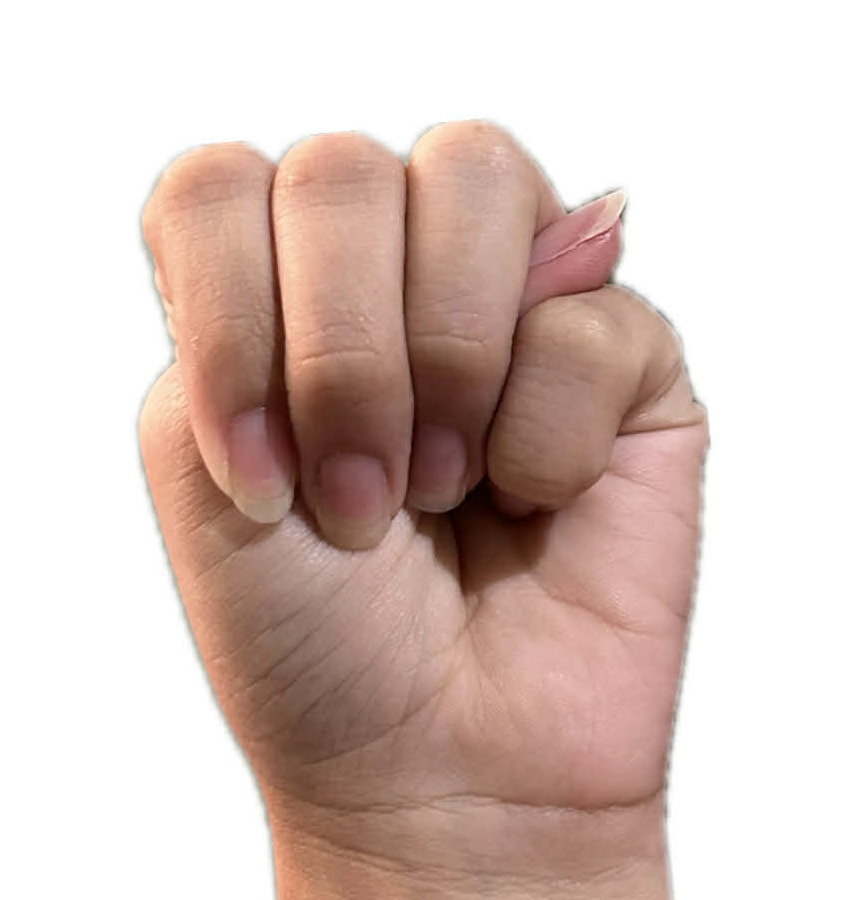
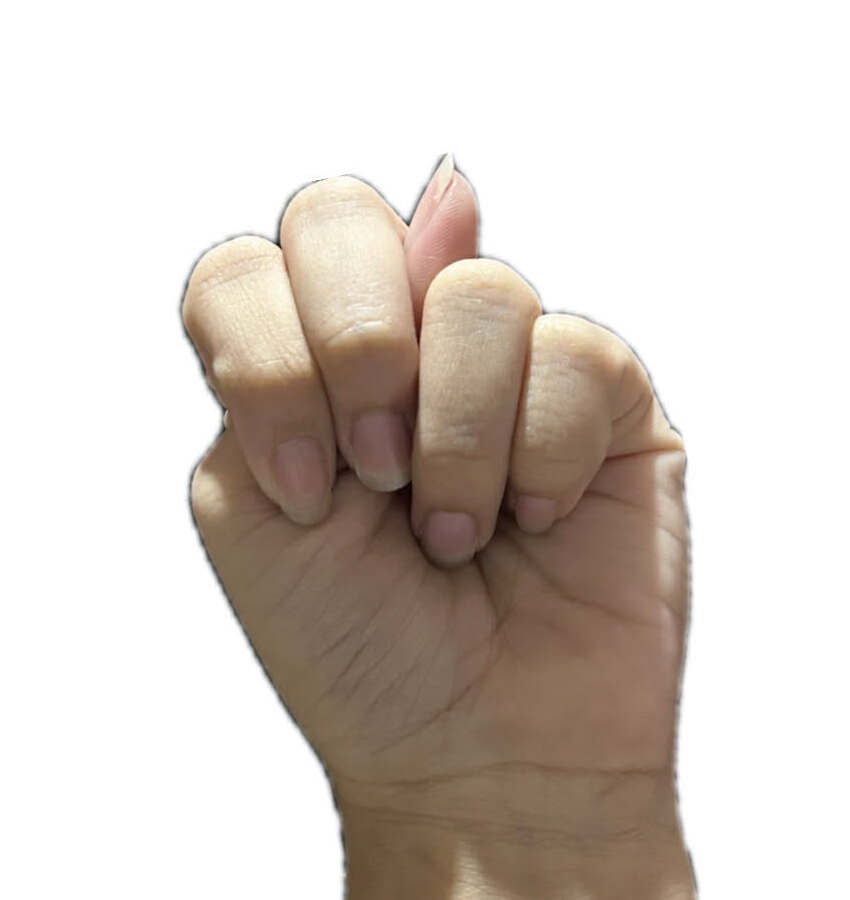
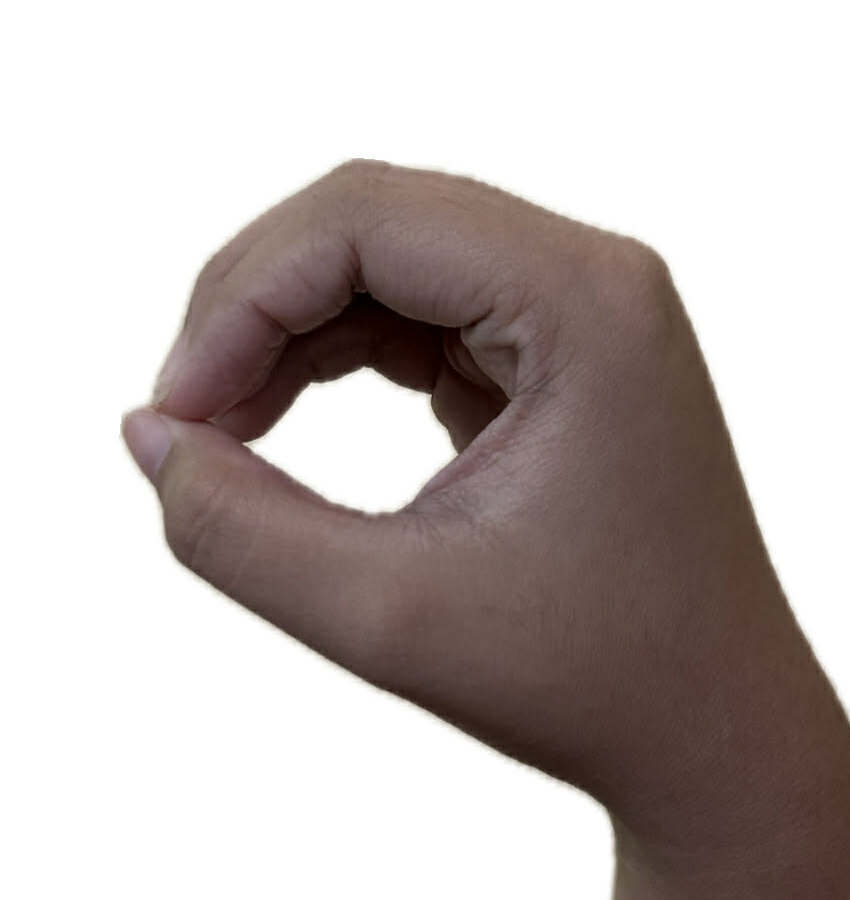
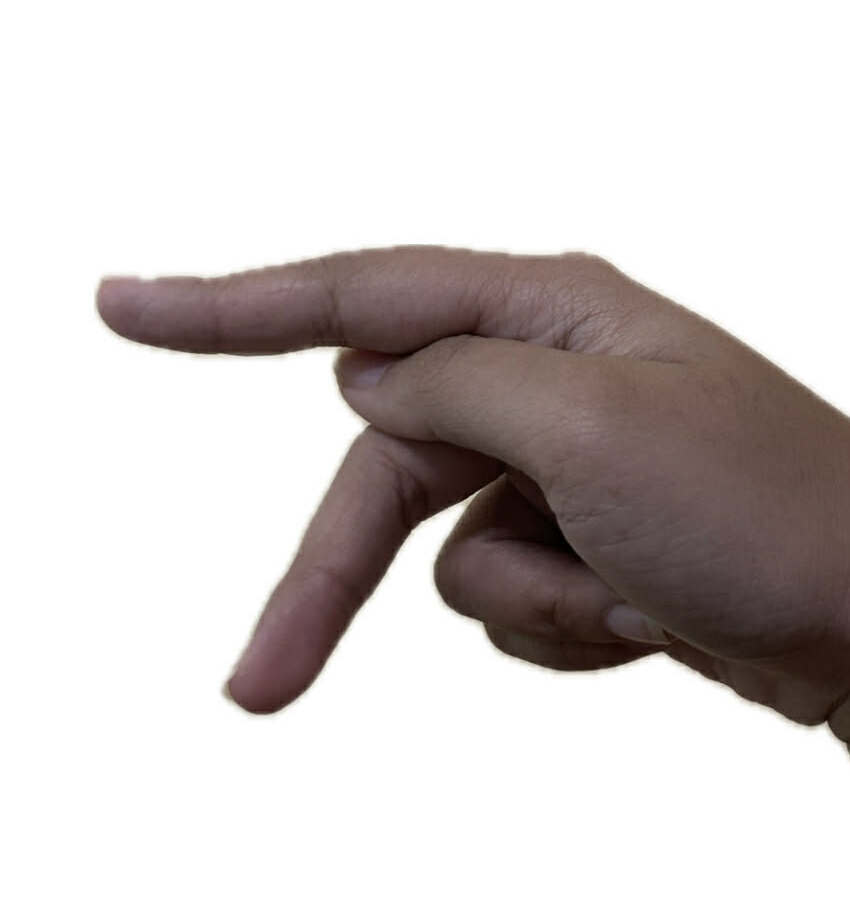
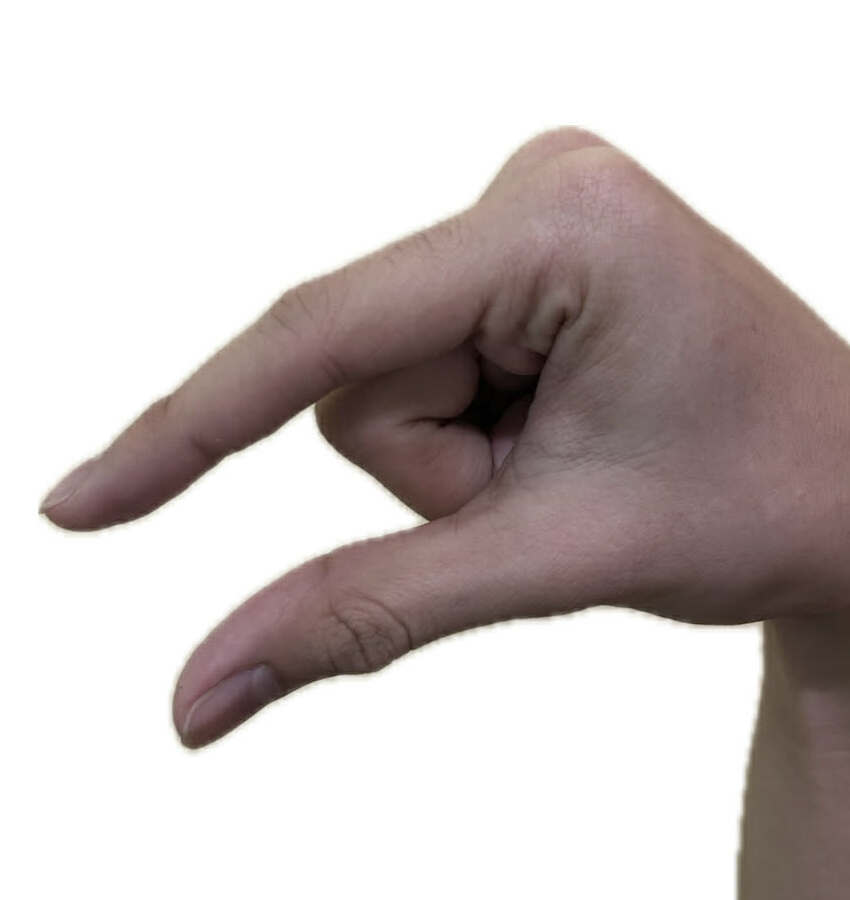
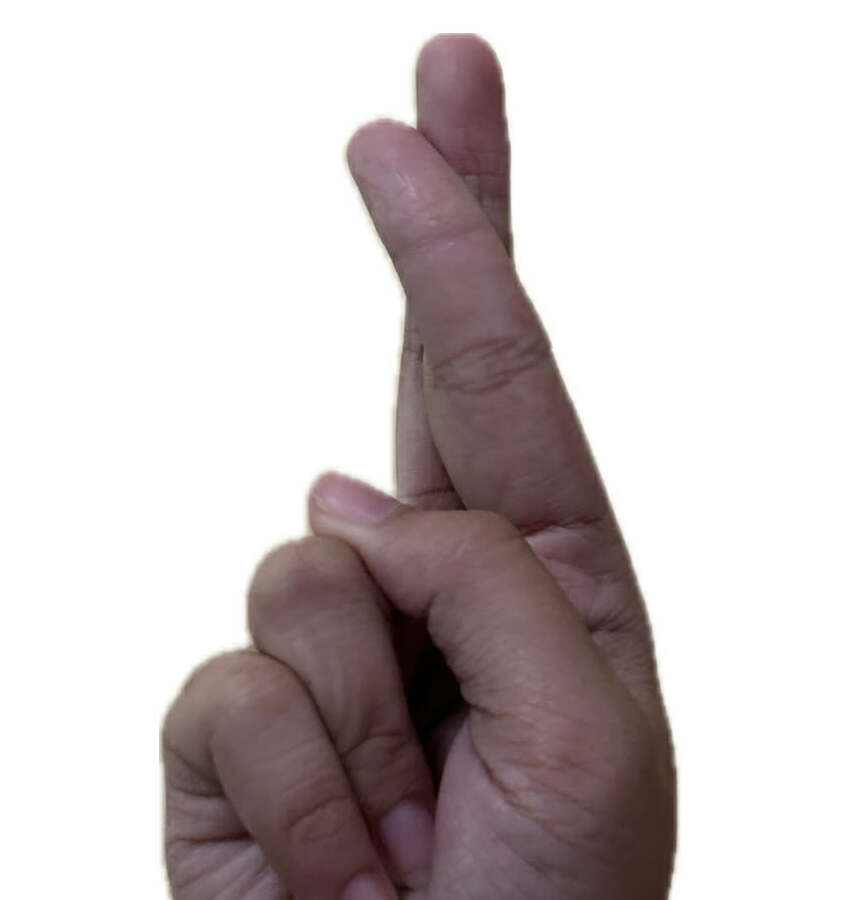
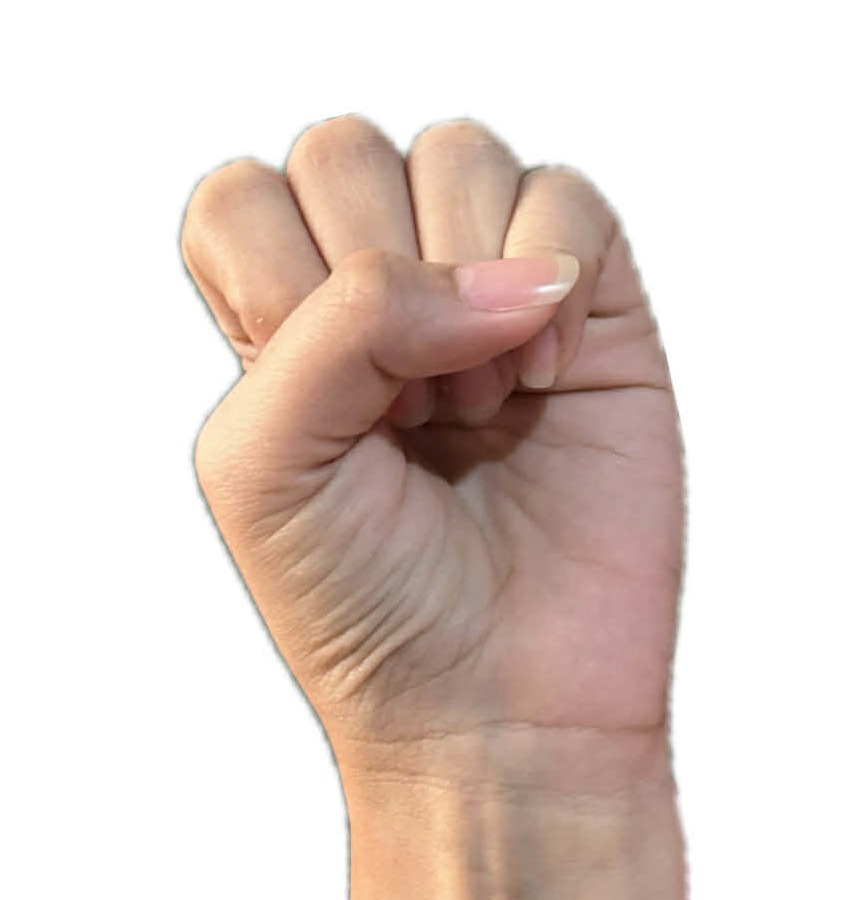
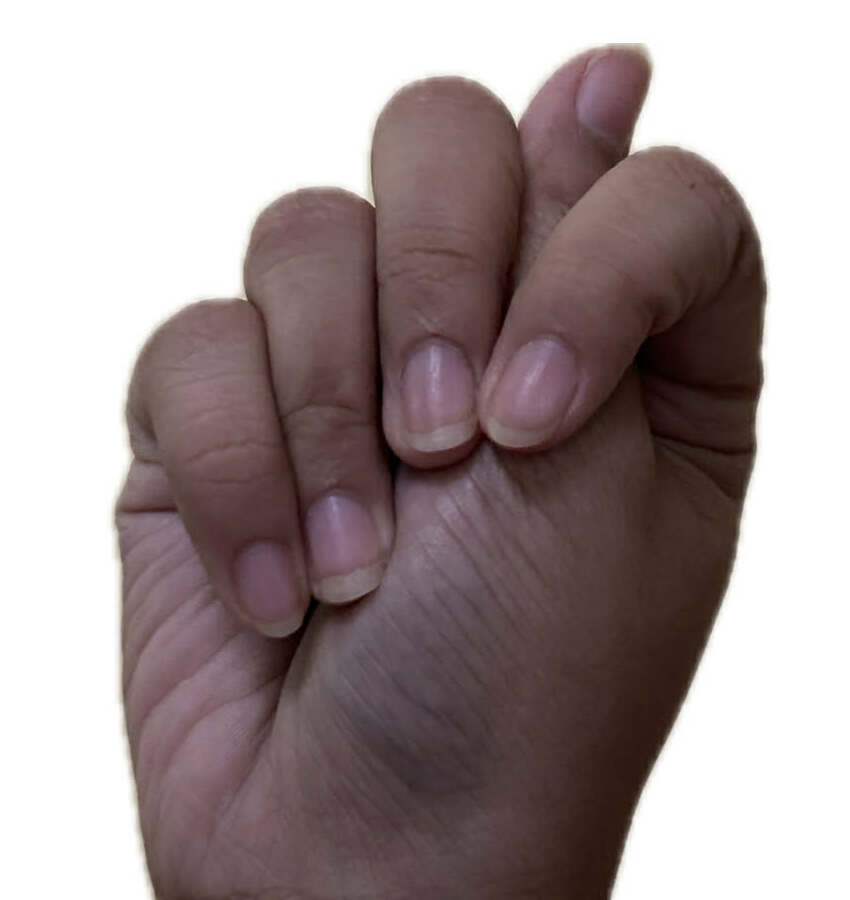
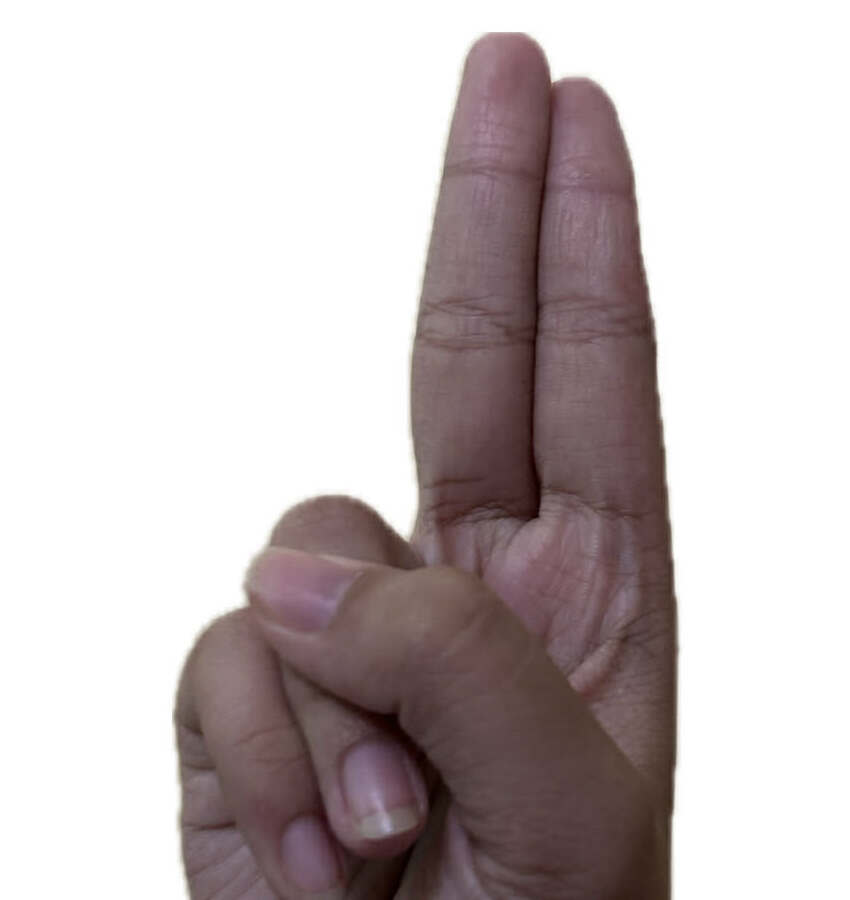
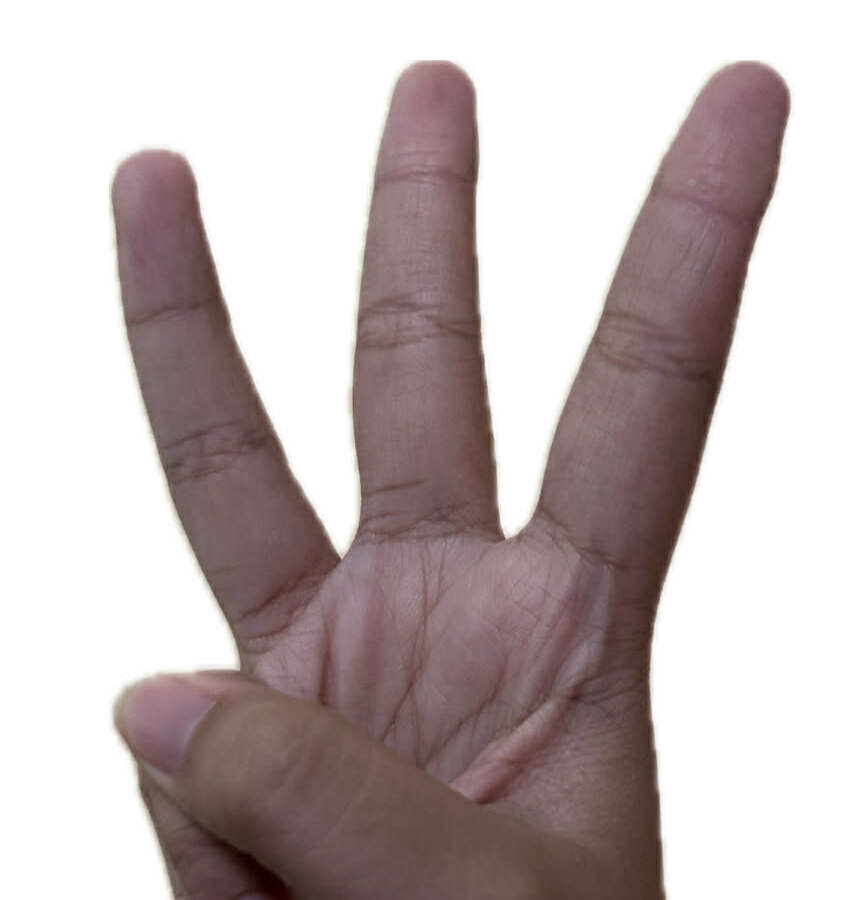
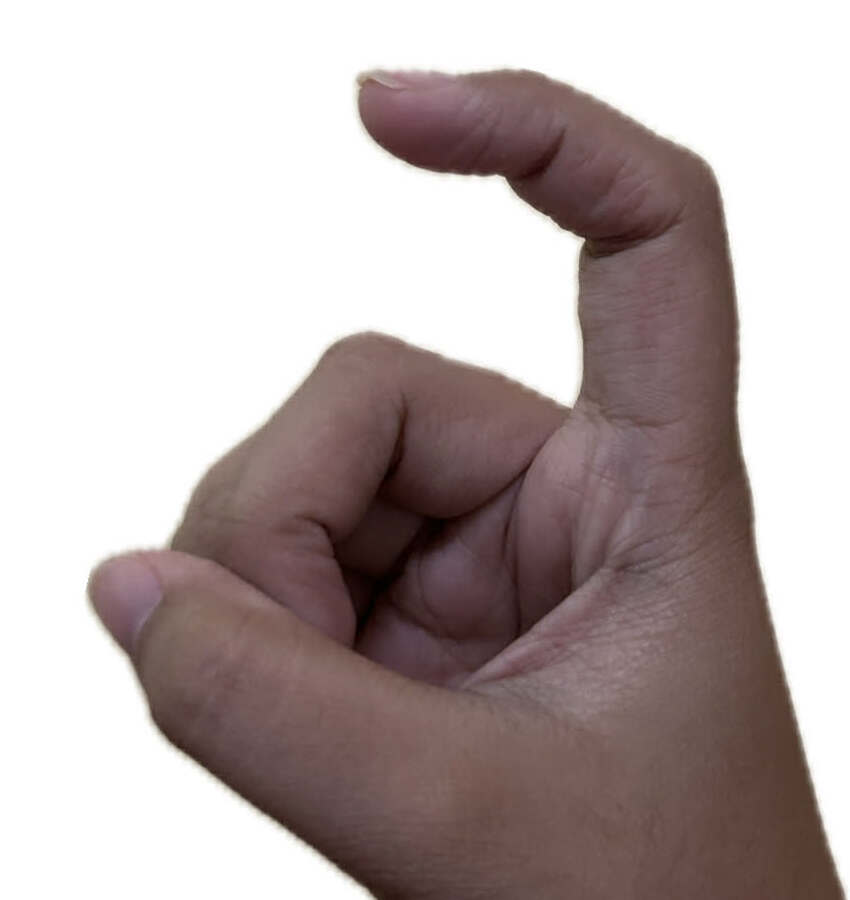
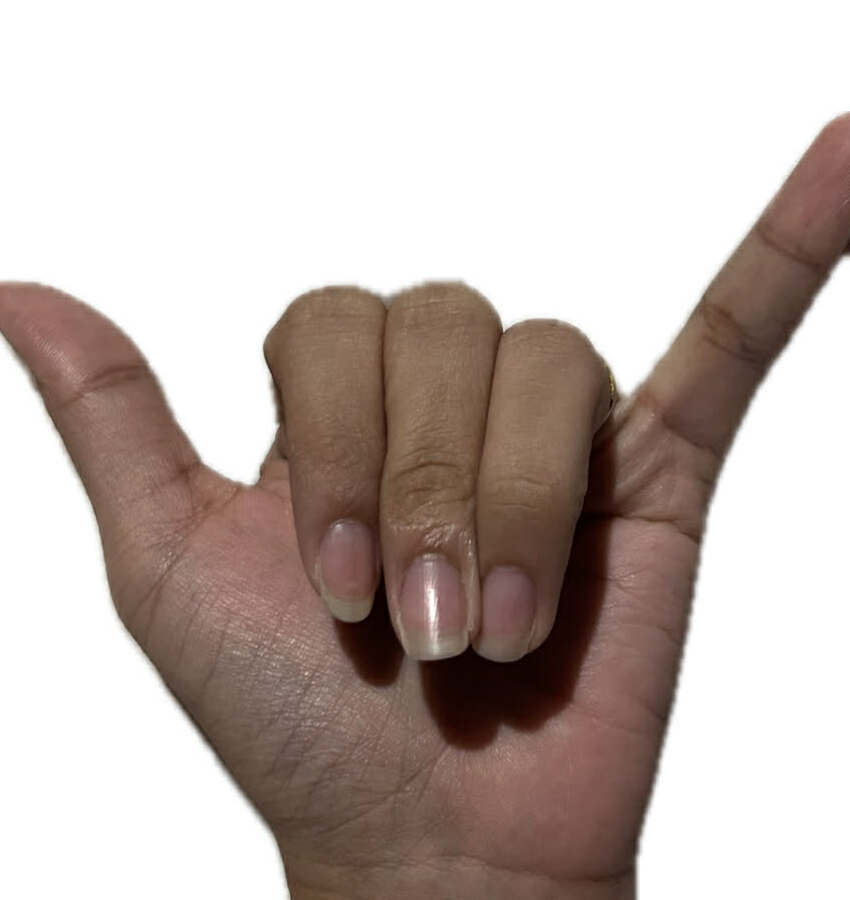
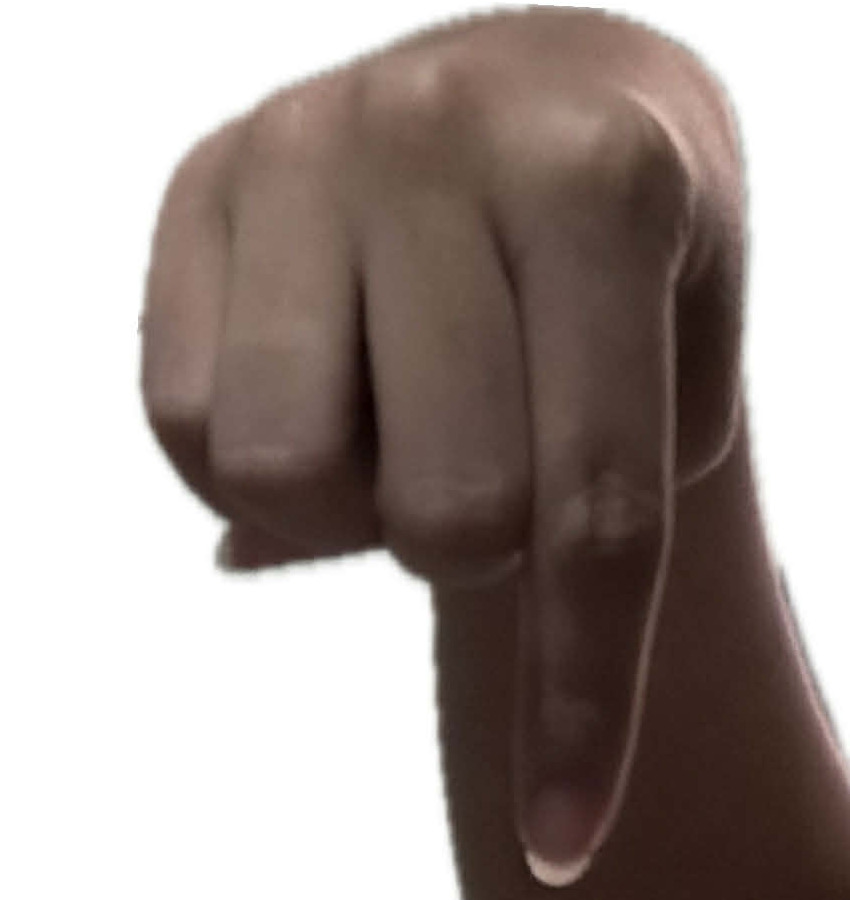
ASL Alphabet Reference
Visual guide for all 26 ASL alphabet letters

Frequently Asked Questions
Why isn't it detecting my sign?
+Check these common issues:
- Ensure confidence is above 65% (shown in detection panel)
- Improve lighting - bright and even, no shadows
- Use a plain background
- Position your hand 1-2 feet from camera
- Make sure your whole hand is visible in frame
- Hold the sign steady - movement resets detection
How do I switch between Auto and Manual mode?
+Look at the "Formed Word" panel at the top of the screen. Click the button that says "Auto" or "Manual" to toggle between modes. The mode indicator below will update with instructions.
Can I use this on mobile?
+Yes! SmartSignReader works on mobile browsers (Chrome, Safari, Edge). The interface is fully responsive. For manual mode on mobile, use the "ADD LETTER" button instead of spacebar.
Is my camera data stored or sent anywhere?
+No! All processing happens locally in your browser. Your camera feed never leaves your device. No data is sent to servers or stored anywhere. Complete privacy guaranteed.
What browsers are supported?
+SmartSignReader works best on modern browsers:
- ✅ Chrome (recommended)
- ✅ Edge
- ✅ Safari (desktop & mobile)
- ✅ Firefox
Make sure your browser is updated to the latest version.
The wrong letter keeps appearing, what should I do?
+Try these solutions:
- Switch to Manual mode for more control
- Check the ASL reference guide to ensure correct hand position
- Adjust your hand angle and distance from camera
- Improve lighting conditions
- Make sure fingers are clearly separated and positioned correctly
Ready to Start?
Put your knowledge into practice
Launch App